Creating block types
You can reuse your existing Block List and Block Grid blocks - they're exactly the same thing! But in most real use cases these will be different document types.
You simply need to create "element" type document types with all the properties you want on your new block, the difference comes in the data type you configure them in:
Adding blocks to the RTE
Instead of creating a Block List or Block Grid, we need to create (or modify an existing) Rich Text Editor data type.
We'll need to add the Block button to the RTE toolbar.
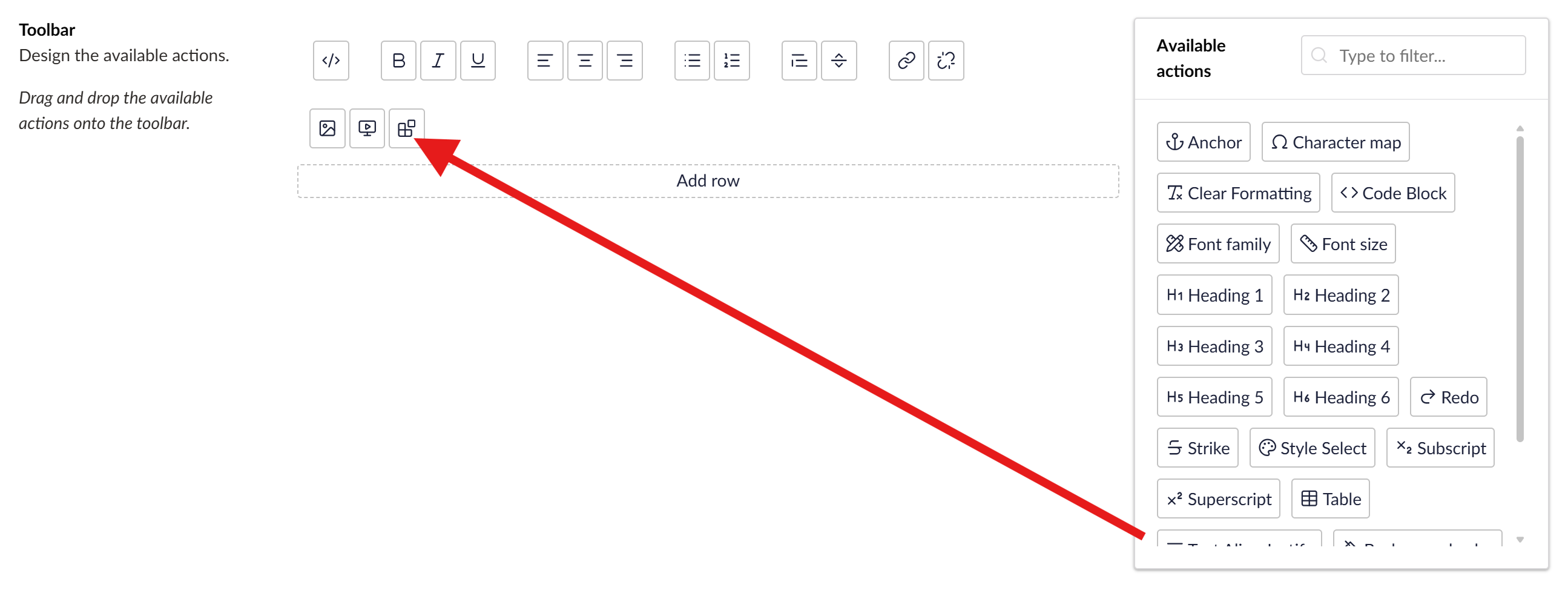
The RTE now has settings for configuring Blocks, just like in other Block editors:
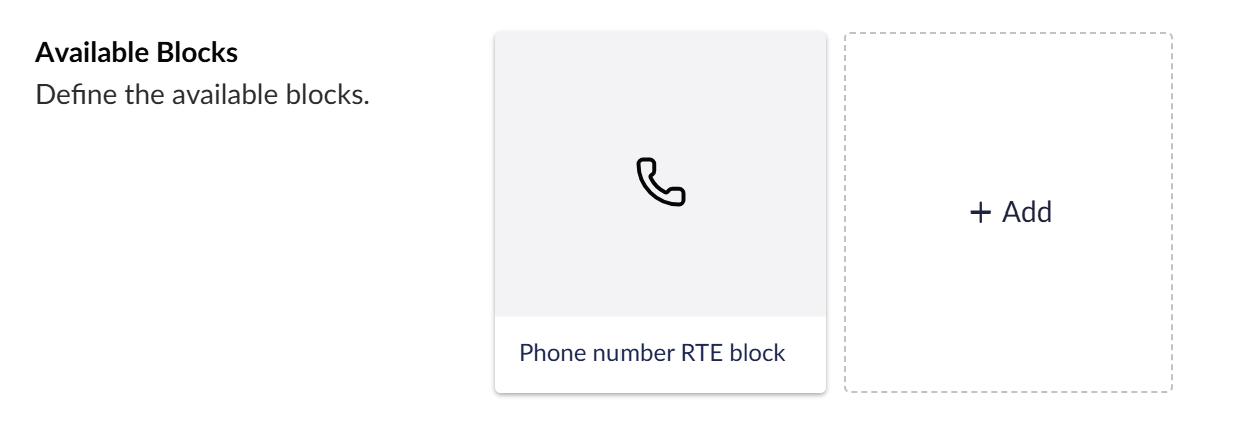
Select your element types with optional settings and configure a label template, just as you would ordinarily as well as a setting for whether the block will render inline (think span) or as a block (think div).
Rendering RTE Blocks
This is probably where the RTE block differs most from the other block editors (and even that doesn't differ much!)
It simply needs a view matching the alias in the Views\Partials\RichText\Components folder.
Here's my example phone number view located at TemplateForSuccess.Web\Views\Partials\RichText\Components\PhoneNumberRteBlock.cshtml
@inherits Umbraco.Cms.Web.Common.Views.UmbracoViewPage<Umbraco.Cms.Core.Models.Blocks.RichTextBlockItem<ContentModels.PhoneNumberRteBlock>>
@using ContentModels = Umbraco.Cms.Web.Common.PublishedModels;
@using System.Text.RegularExpressions
@{
    var contactPage = Model.Content.ContactUsPage as ContentModels.Contact;

    if(contactPage is null || string.IsNullOrWhiteSpace(contactPage.PhoneNumber))
    {
        return;
    }
}

<a href="tel:@contactPage.PhoneNumber.Replace(" ", "")">
    @Regex.Replace(contactPage.PhoneNumber, @"\+44\s*", "0")
</a>
In this example I'm rendering a phone number from the selected contact page (a property on the Block), applying all the logic I want to format the phone number and adding the tel: link.

The journey for adding this block via the backoffice looks like this:
- Click the insert block button
- Pick my phone number block
- Complete the content for the block, a content picker for the contact page in my case
- Save
- And a placeholder appears inline in the RTE
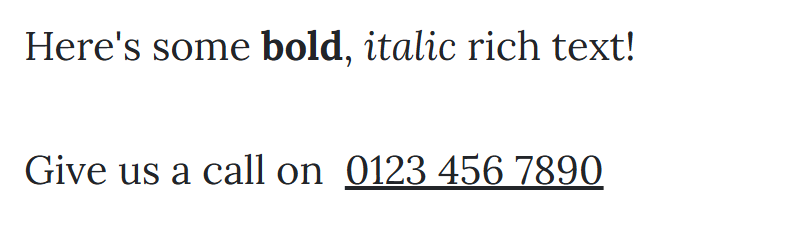
Which, when viewed on the frontend renders my view:
Further reading
Migrating Rich Text Editor Macros to Blocks using uSync Migrations